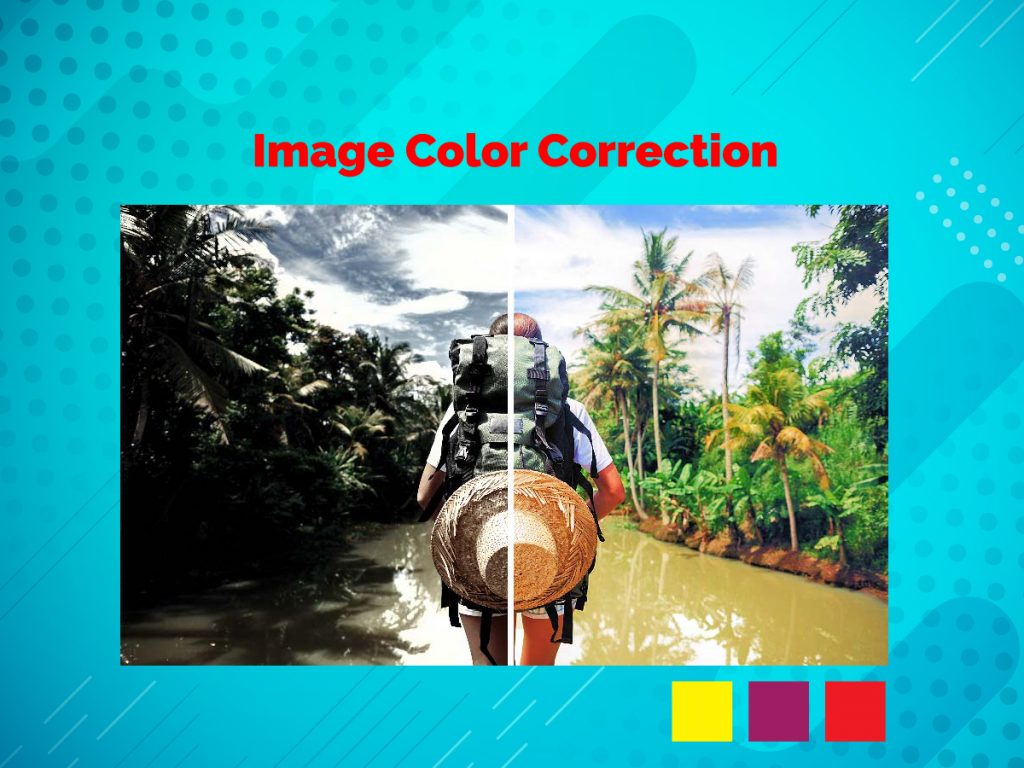
Image Color Correction: 5 Easy Steps For Beginners
Many of you who are learning to edit pictures on Adobe Photoshop have the same questions and look for the solution to easily correct the color of a particular image. It is a bit complex for the first timers or newbies to adjust the color of an image all by himself/herself.
In this article, I am going to explain to you the basic few steps that are needed to adjust the color setting in Adobe Photoshop. Even if you are a beginner in using Photoshop, this article will help you do some miracles.
But before that you must make sure Adobe Photoshop or Adobe Illustrator is properly installed in your computer and its running fine. The right guidelines and tutorials of this article will help you adjust the color on your own.
Anyway, let’s start the basic 5 Steps that will help you with the color correction of any image:
5 Easy Steps To Correct Any Image Color (Beginners Friendly)
It is very important to correct the color of an image as the viewers will have a very good impression if your image is perfect with the right editing. The color balance and using the right shadows and filters will boost the quality of your image.
However, it’s very expensive and time consuming for most people and business organizations to hire a professional image/picture editor. That’s why you’ve to keep knowledge on the basic editing skills.
For that reason, I write this beginners friendly guide. Here, I present you the 5 easy steps to correct any image color with photoshop:
Step 1: Finding The Right Color:[image color correction]
It is very important to find the right balance of the color of any image. In order to do that you have to find the exact color you want to work on and remove it for a better look. Keep in mind that every other color has a complimentary color.
In order to find the right balance of the color you can close look at the image and find the imbalance of color you want to change. Obviously you have figured out the problem why you want to modify the color.
My simple guideline in finding the right balance of the color is to find the layer of the color by pressing Control + I. By pressing it, you can now invert the color and find the opposite color to balance the color of your original image.
Always try to invert the opposite or complementary color to find the right balance of the image. This is very important as finding the right balance will change the overall scenario of your editing.
Step 2: Start Your Correction:[image color correction]
Once you have found the right balance of the color by going through the previous step it is time for you to start correcting your image. This is the most important part, and follow the guidelines very carefully.
Go to the top menu and then select Layer. From the Layer, you can see the box of the new adjustment layer. Select the new adjustment layer and choose color balance. You will see the color box where the entire settings and properties of color balance appear automatically.
Here you can use the tones such as midtones to find the exact ratio of the color you want to modify and alter in order to bring more sharpness to your image.
Step 3: Finding The Right Balance:[image color correction]
As I have already told you in the beginning of this article, finding the right balance of the image is very important. The right balance will help you dark up the light areas and shadows of any image.
You can go to the menu as of the first step, Click Layer and select the new adjustment layer and now select the curve to increase or decrease the brightness of the photo. You can also select the blending options by clicking right on the curves and start modifying your image by finding the right balance.
Step 4 : Add Blue Filters To Improve Your Color:[image color correction]
If you are still not satisfied after going through the right balance of the color and modifying it, you can add blue filters to improve your color more. In order to do that you will see different filters in the properties of your image and in the layers.
Here you can add blue filters and can tune or blend in more colors to create a filter on your own. You can add the opacity to 40% or reduce it to 50%, depending on the type of contrast you are looking for in your image.
Step 5: Setting The Right Point- Grey/White/Black:[image color correction]
Well it all depends on the kind of point you want to use to modify the image or correct the color of your image. Most people use the auto correct which is available in Adobe Photoshop CS6.
Different points are basically used to make the image look more natural. If you are looking for something like this, I will recommend you to use the grey point which always gives the image a very natural look.
In order to do that go to the curve box, and then select the sample in image to grey point. Here you will find the three eyedropper tools to adjust the contrast of your image. You can click the eyedropper to any places of your image and see the differences by experimenting in different areas of the image.
Final Verdict:[image color correction]
Well if you are a beginner this article will definitely help you to improve your photo editing skills. But most beginners prefer to use the Auto Correction mode which is available in Adobe Photoshop Cs. This is not good at all.
It is always recommended to learn the hard way that is the manual way I have provided in this article. Read my other article to learn more about Photoshop
How to Make a Professional Photographer’s Watermark for Your Photos in 2022